Take iPhone photos without adding them to Photos.
Take the photo in Local Cam. The JPEG is saved in the app's local folder instead of your Photos library.
This is useful for reference images, labels, repair details and other pictures you want to keep separate from personal photos. Local Cam is a paid iPhone app by Max Schecter. It supports iOS 17 or later and has no Local Cam account or subscription.
1. Take the photo in Local Cam
Install Local Cam from the App Store, open it and allow camera access. Use the shutter to capture a still photo. New captures are saved in Ready to Upload inside the app's Documents folder. Local Cam does not add them to the system Photos library.
To review a pending photo, tap the latest-photo thumbnail. Swipe through your pictures and tap a filename to rename it. A useful name makes the file easier to recognize later in Files.
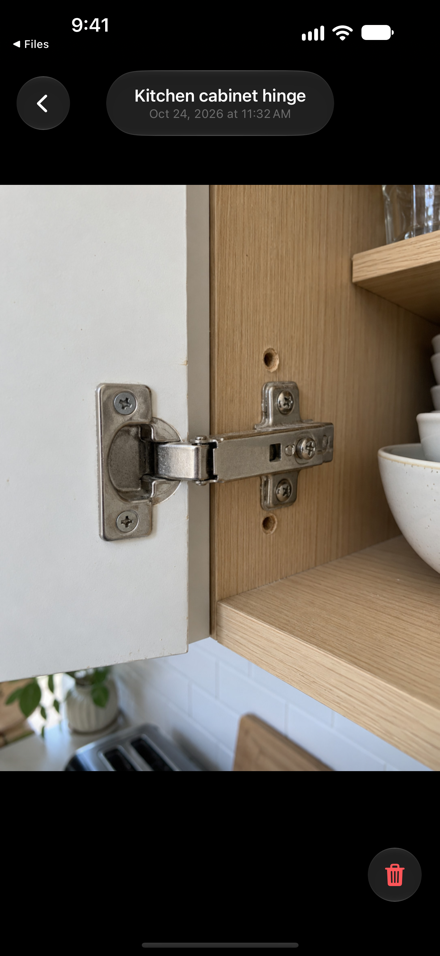
2. Find the JPEG in Files
Open Apple's Files app. Choose Browse → On My iPhone → Local Cam → Ready to Upload. Your new photos are regular JPEG files in this folder.
The app also has an Uploaded folder. Both folders are local storage on your iPhone. The name Uploaded is a status you manage, not proof that a cloud service received the file.
Separate from Photos does not mean excluded from backups
These captures are separate from Photos and its iCloud Photos library. However, Local Cam does not exclude its documents from operating-system backups. Your backup and restore settings may include the files.
Deleting the app can remove its local photos. Keep and verify another copy of important files before deleting Local Cam or changing devices. See the privacy policy for storage, metadata and backup details.
Next: a practical project-photo routine. Need help? Visit support.