Keep project photos in their own space.
A label, a part number, a view before disassembly. Capture the details in Local Cam and keep them outside your personal Photos library.
Here is a practical routine for documenting a home repair or hobby build. The filenames below are examples, not built-in project folders or an automatic filing system.
Capture the context and the detail
For a cabinet repair, take one wider photo showing where the part belongs and a close-up of the hinge or label. Take each photo in Local Cam so the new JPEGs go into Ready to Upload instead of Photos.
You can take, review and rename photos while offline. Choose a lower photo resolution in iPhone Settings if you want smaller new files. Resolution changes do not resize files already saved.
Name the files while the detail is fresh
Tap the latest-photo thumbnail, open a pending photo and tap its filename. Give related photos recognizable names, for example:
Kitchen cabinet - hinge position.jpgKitchen cabinet - hinge close-up.jpgKitchen cabinet - part label.jpg
Local Cam is a pending-photo gallery, not a project database. Naming the files makes them easier to recognize when selecting or exporting them through Files.
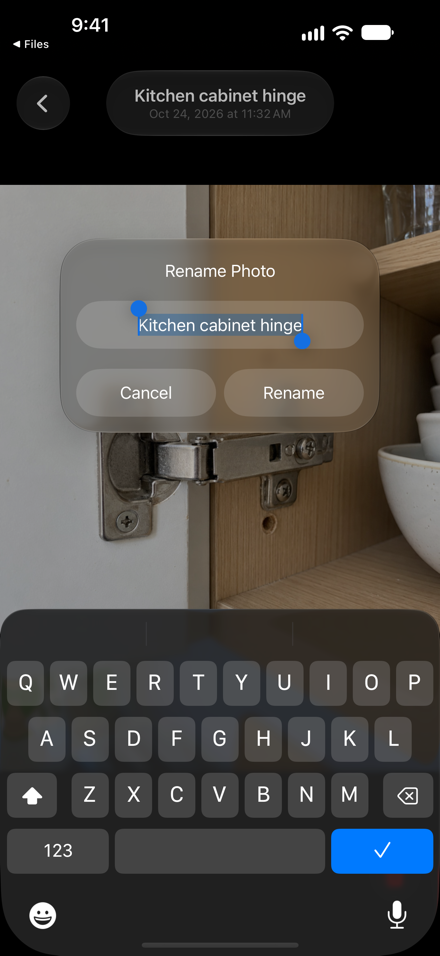
Send the batch through Files
Open Files → On My iPhone → Local Cam → Ready to Upload. Select the files for this project and share, copy or upload them to your chosen destination. You can create your own project folders at that destination using its tools.
Check that the received files open and that every intended photo is present. Local Cam does not monitor the destination or confirm that the transfer succeeded.
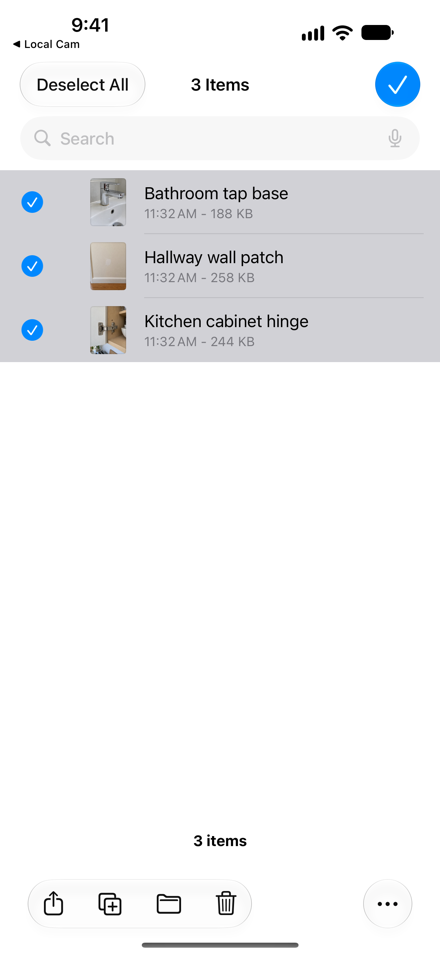
Clear the pending list after checking the copies
When every pending photo has been successfully handled, return to Local Cam and choose Ready → All Files Uploaded, then confirm. This moves the pending files to the app's local Uploaded folder.
The action applies to all pending photos, including any new captures since you selected the batch. If other photos still need sending, wait. Moving files to Uploaded does not free storage.
Keep an independent copy of important work
Use Files to browse both local folders and to manage older photos. Verify another copy before deleting important originals. Deleting a file locally does not remove a separately exported copy; deleting Local Cam can remove the app's local documents.
Device backups may include these folders depending on your settings. Local Cam does not provide a backup service or strip all image metadata.
For setup: taking photos outside Photos. For camera permissions, resolution and Lock Screen access: Local Cam support.